Drowning in email? Try Inbox Zero to learn sane tips for dealing with high-volume email. And don’t miss the free Inbox Zero video. »
Register for free on 43 Folders to comment on articles, post to our forum, customize your visits, and much more. Current users can login now.
Some handy Mail.app Smart Mailboxes
Merlin Mann | Apr 23 2007
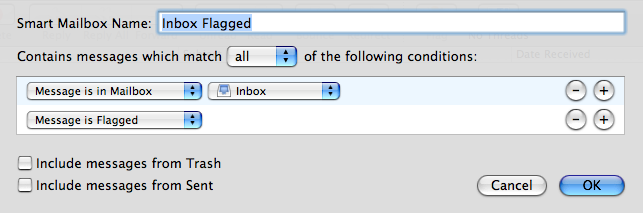
It took me a while, but ever since I’ve gotten my head around Smart Folders (and Smart Playlists and Smart Groups, etc.), I’ve started to think about the way I use my Mac a bit differently. Clearly iTunes is the winner in this regard (watch for an upcoming multi-part series about Smart Playlists on The Merlin Show), but the Finder, and Address Book, and Mail.app also have an amazing amount of power rumbling under the hood. So, in the interest of spreading the love, here’s four Mail.app Smart Mailboxes that have been rocking my world over the last months. Inbox, Flagged
This super-basic mailbox is great for whenever you’re processing your Inbox(es). You can blow through all the incoming messages, quickly flag anything that needs a response ( Recently Viewed
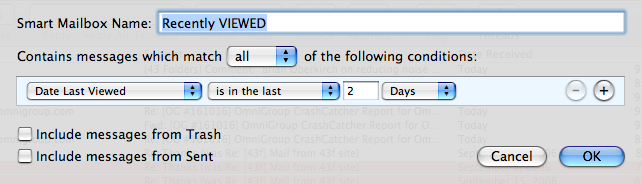
How many times do you think, “Oh, crap. Where’s that message I was looking at last night?” and then you have to either manually drill down through mailboxes or do a (notoriously slow) Mail.app search. This little guy can quickly bubble all the emails you’ve looked at in the last day or two. I use it all the time. [ via Red Sweater Blog - Mail Smart Folders ] Recently Sent
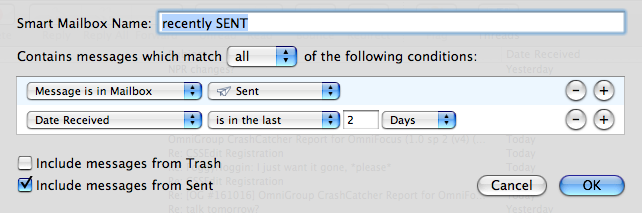
Like the previous Smart Mailbox, this simpleton makes it easy to bubble-up messages that you often need to refer to, but that can be a pain to locate the old-fashioned way. Just shows you any messages you’ve sent to other people in the last couple days. Yeah, it’s obvious, but, man, will you ever love this once you remember it’s there. [ also via Red Sweater Blog - Mail Smart Folders ] From a given Address Book groupIn Address Book:
In Mail.app:
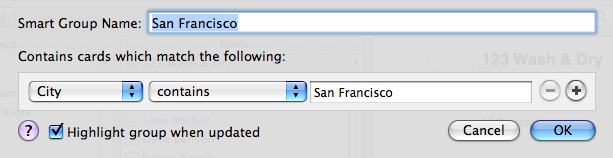
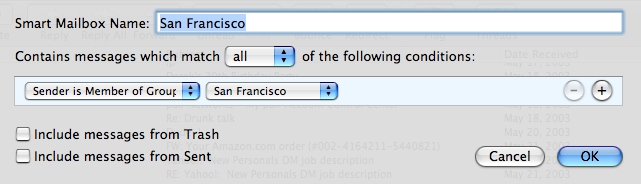
A lot of folks don’t realize that Smart Groups even exist in Address Book. Consequently, even fewer know that the contents of both ad hoc and Smart Groups can be searched on from inside Mail.app. So in this example, I’ve created a Smart Group with everyone in my Address Book who lives in San Francisco, then I tell Mail.app to group all those peoples’ emails in one place. This is also swell for seeing messages from a company you work with a lot, and it’s fantastic for grouping all the email from people in your family. These particular kind of mailboxes can often be enhanced by ticking off the “Include messages from Sent” box — that way you also see your own emails to people in this group, allowing you to view your conversations in threads. (Note that this is a lot less useful if your own Address Book entry matches the saved criteria :-) ) If you find yourself searching or — God forbid — manually hunting for certain kinds of messages again and again, try to think of a way that Mail.app Smart Mailboxes can do the heavy lifting for you. And, if you add to the mix something like Mail Tags (which adds several very useful search abilities), you can have a lot of automated sexy happening in your email. Edit: 2007-04-23 11:56:23: Nomenclature corrected — As Jean points out in comments, these are properly called “Smart Mailboxes” not “Smart Folders.” Thanks, Jean! POSTED IN:
|
|
| EXPLORE 43Folders | THE GOOD STUFF |
Hey I've got an even...
Hey I’ve got an even simpler one that I love— it’s great for those of us with multiple email accounts. It’s called “NEW”, and it’s just a collection of all unread messages from any account.
Instead of using Inbox, I've...
Instead of using Inbox, I’ve moved to an “Unresolved” Smart Mailbox that matches on either “Message is Unread” or “Message is Flagged”. As mail comes in, it’s either stashed off into an appropriate folder (or tagged with MailTags) and/or it’s flagged for follow-up. It works really well for me.
I use a smart mailbox...
I use a smart mailbox to review and file email. It selects messages that are in my inbox or in my sent mailbox. The secret to making this mailbox useful is to select Organize by Thread from the View menu.
I'll give you five you...
I’ll give you five you missed:
Attachments. Oh how this has saved me (as well as attachments in the last month) Yesterday. two days ago. Last week.
And I’ll second mailtags - I use it all the time with Mail Act on, and have a number of prebuilt actions and tags that work with smart mailboxes.
how do drug reps filter...
how do drug reps filter spam?
The smart mailbox I spend...
The smart mailbox I spend 100% of my time in is “Conversations”. It collects all my mail from inbox and sent, and threads it together so I can see complete back & forth conversations as in Gmail. This is the killer feature of Mail.app that makes T-bird useless for me.
I use smart mailboxes to...
I use smart mailboxes to group emails from clients. Simply create a rule that matches ANY of these rules: “FROM contains [@client-server.com]”, “MESSAGE contains [clientname]”. Extremely useful when you work with a lot of clients!
Thanks for the tips. I've...
Thanks for the tips. I’ve been using Smart Mailboxes for a while after I came across one application that really changed the way I use Mail: MailTags. As some of you know MailTags allows you to tag e-mails under user-created categories and projects (similar to Entourage) and it also brings integration with iCal letting you relate e-mails with to-dos on iCal.
I have several Smart Mailboxes right now automatically collecting e-mail messages that I have catalogued under different criteria. So for example, you use MailTags to tag your mail as “Personal” and “Work”, then you tag all “Work” e-mail under its specific projects, and so on. You can create Smart Mailboxes using different criteria from MailTags, such as a Smart Mailbox that will collect all your e-mails tagged under the category “Work” and with the keywords “Sales Presentation”. Another one with “Work” e-mails and the keyword “Meetings”, etc.
[...] I just saw a...
[…] I just saw a great tip over at 43 folders on how to do some cool things with smart mailboxes. When switching over from Windows to OSX I had to decide on what mail client to use. I ended up picking Apple’s Mail because of it’s Smart Mailbox feature as this was similar to the way I was organizing my mail in Outlook before. Overall I am very happy with Mail & Spotlight integration - with 8 years of email backups I appreciate ability to search back through it all quickly. Social Bookmarks These icons link to social bookmarking sites where readers can share and discover new web pages. […]
I also use one called...
I also use one called Voicemail that puts all of my Vonage and Spinvox voicemails in one box. The unread count shows me how many messages I have waiting.
Mailtags also works amazingly well with Smart Mailboxes. It lets you use Mail.app filters to tag emails, and then use Smart Mailboxes to sort them all out.
I will have to try...
I will have to try this out. I know I haven’t used smart mailboxes to the best of my abilities and this gives me several ideas to try.
I cannot wait to watch your show on smart playlists. Right now, I have a mega smart playlist called “iPod Playlist”, which is simply 6GB of music that is rated 3 stars or higher, that I have not played in the past 3 weeks. It is the ultimate shuffle playlist (there is no junk in there since I rate my music honestly), but it would be cool to get some ideas for more specifically targeted playlists.
[...] Doch marschiere ich immer...
[…] Doch marschiere ich immer wieder per Suchfunktion durch die Inbox, um bestimmt, gleichgeartete eMails routinemäßig (lies: »wie am Fließband«)durchzugehen. Der aktuelle Eintrag bei Merlin über die Nutzung der Schlau-Ordner hat mir die Sache jetzt massiv vereinfacht. Ich habe nun Schlau-Ordner, die die routiniert zu bearbeitenden Mails sammeln. […]
[...] Some handy Mail.app Smart...
[…] Some handy Mail.app Smart Mailboxes | 43 Folders (tags: mail.app mail tips tricks hacks 43folders mac osx email) […]
I think Mail refers to...
I think Mail refers to these as Smart Mailboxes, not Smart Folders.
There IS something called the Smart Mailbox Folder. I only discovered it today, while setting up the Smart Mailboxes per your advice. I’ve always been put off by Smart Mailboxes because they get displayed above my regular GTD processing Mailboxes even though I’ve named them in an alphabetically-favored fashion: 2Act, 2Call, 2Hold, etc. I didn’t want to have a bunch of Smart Mailboxes cluttering up the view view.
With a Smart Mailbox Folder (Mailbox > New Smart Mailbox Folder), I can have one folder where all these helpful Smart Mailboxes can live. I called the folder “Smart Mailboxes” but no doubt there is a cleverer way to use this feature.
Love the concept behind recently...
Love the concept behind recently viewed, but I’m a little confused — I run through my email by highlighting and arrowing down a long list, effectively making all of my mail recently viewed. I’m wondering if you have a way around this.
I especially like the Address...
I especially like the Address Book Group combo smart folder. I tried mailtags but it was just too much work. My draconian philosophy is that if the sender can’t put the right key words in the message so that I can find it, it doesn’t deserved to be found.
I tried deleting mails aggressively...
I tried deleting mails aggressively but some times found that I deleted too aggressively and was left digging through the trash trying to find something I wanted later. Also some e-mails need to be kept for a limited amount of time before they become uselesss. Things like directions to next weeks blug meeting. Although I may capture this information elsewhere (e.g. diary) I like to have the orginal e-mail to hand.
With these types of mail I tag them with Mail-Tag as ‘Keep for 6 Months’ and then using Mail Act-On they get moved with most other mail to my Archive folder. I have a smart mail box which shows only messages that are over 6 months old in the archive folder and are tagged as ‘Keep for 6 Months’. Once in a while I look in this smart folder and confirm that all these e-mails are now irrelevant and delete them. If I decide they are worth keeping I remove the tag.
Thanks so much for the...
Thanks so much for the Flagged Smart Mailbox !! Wow!! THIS IS HUGE for me. I would never have thought of doing this… but now it’s pretty obvious. Thanks! Love ya.
I think Mail.app is a...
I think Mail.app is a singularly atrocious mail client. I finally threw in the towel last month and moved to Gmail, much against my own instincts. The poor performance and stability of Mail.app stems directly form the lack of competitive pressure in the mail client space. Its amazing to see that there are so many browser choices and so few for mail.
@ Gottaz: This might help:...
@ Gottaz: This might help: Emulate Gmail’s conversations in Mail.app —> http://www.macosxhints.com/article.php?story=20050725110729974
i liked the first one...
i liked the first one … that’ll be useful for me … i can live without the others … good article … thanks for sharing the love … :P …
[...] Some handy Mail.app Smart...
[…] Some handy Mail.app Smart Mailboxes | 43 Folders (tags: mac mail tips osx mail.app 43folders) […]
I've just tried the Address...
I’ve just tried the Address Book Smart Folder to Smart Mailbox example, and Mail.app was case sensitive w.r.t. email addresses (i.e. not fully RFC*822 aware). Some of my recipients did not appear until I modified the case of the email address in the Address Book to exactly match the case of the sender address in the emails. (This is apparently a defect in Mail.app.)
[...] Some handy Mail.app Smart...
[…] Some handy Mail.app Smart Mailboxes | 43 Folders Smart Whatevers are commonly underestimated, I noticed. (tags: eMail Lifehacks Mail OSX Productivity reference lang:en) […]
@Michal Migurski [...]The smart mailbox I...
@Michal Migurski
[…]The smart mailbox I spend 100% of my time in is “Conversations”.[…]
Could you explain how you did your “conversations” smart mailbox please ? Thanks.
This is actually a good...
This is actually a good use of smart mailboxes. It just took me a while to get used to the difference between smart mailboxes and rules. When I first started to use Mail.app, I had smart-mailboxes for my credit card notices, messages from my wife, etc. But then I realized that rules are really a better fit for this type of organization. I haven’t really touched smart-mailboxes since (especially because these rules remove the email from my inbox, and I always love a clean inbox).
I don’t know why I didn’t think of using smart-mailboxes like this. Afterall, I use smart-playlists in iTunes in a similar way.
@gottaz: There are just two...
@gottaz: There are just two rules - “message is in mailbox inbox” and “message is in mailbox sent”. Either one (“any”) can match, and I also checked the “include messages from sent” box at the bottom of the smart mailbox dialog. I sort by descending date, and turn threading on.
Why is the "recently sent"...
Why is the “recently sent” smart mailbox better than simply viewing “Sent” ordered by date?
Merci beaucoup Merlin !!! J'adore ton...
Merci beaucoup Merlin !!! J’adore ton ingéniosité !! J’ai hâte de découvrir tes Smart Playlists pour iTunes !! A+
Great ideas, Merlin. I set...
Great ideas, Merlin. I set up some of your suggestions in Eudora which it calls “Saved Searches.” It’s the same functionality with a different name.
@Michal Migurski: I don’t use Thunderbird (but will likely switch as Eudora development is stalled on its way to becoming open source) but the feature page says it allows saved searches. I can’t find what search criteria it allows, but I’d be surprised if it doesn’t allow what you’re looking for.