New to 43 folders? Here are our All-time Most Popular Posts. Want the best stuff? Here are our Classics.
Register for free on 43 Folders to comment on articles, post to our forum, customize your visits, and much more. Current users can login now.
Vox Pop: Workflow for the Fujitsu ScanSnap?
Merlin Mann | Oct 23 2007
In comments about yesterday’s “Making friends with paper” post, I was reminded by 43f member Adam Hooks…
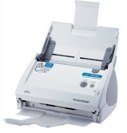
Adam remembers correctly that I purchased and preliminarily fiddled with the Fujitsu ScanSnap S500M for OS X (Info, Amazon). It’s a small-footprint, high-speed document scanner that a lot of people have been talking about lately. I’d read so many reviews and blog posts about how easy it is to use that I was intoxicated by the dream of a life — if not without paper storage — where I could at least try to minimize my unnecessary paper clutter and start making document archiving easier and more searchable. Given the not inconsiderable cost of the unit, I’m embarrassed to say that I got busy with other stuff and haven’t yet returned to using the ScanSnap in any automated way. Doesn’t mean I’m not interested or haven’t gotten started… ScanSnap S500M My initial experiences, while tentative in terms of time commitment and true workflow integration, have been very positive so far. It’s easy and fast to set up the S500M and then start scanning one- or two-sided documents. The beauty part is that the included “ScanSnap Manager” app not only stores your document preferences, but directs the USB input from the ScanSnap right into the destination app of your choosing (which can, of course, be an OCR app — that’s where it gets powerful). Initial experiments scanning directly to image-only PDFs were very positive, while scanning into “Yep” and “DevonThink Pro Office” (which has on-board OCR) seems to point even closer to the direction I eventually hope to go. I know at least a few of you are ScanSnap studs who have come up with workflows that are really happening for you (hint: looking at you for a blog post here, Mr. Norbauer). In the absence of a more detailed report from me, I’m hoping a few of you can chime in here. The Question to YouHow are you integrating the ScanSnap (or another OS X-friendly document scanner) into your workflow? What are you using for OCR? Having particular success with ReadIris, Acrobat, DevonThink, or Yep? Any sexy Automator workflows to share? POSTED IN:
|
|
| EXPLORE 43Folders | THE GOOD STUFF |
Document Wallet
I’ve been using my Canon MP500 printer/scanner which works well except for the fact that you can’t scan when hooked up to an Airport Extreme - how dumb is that? I tried Yep for a while and it generally got the job done, but I really prefer the interface of Document Wallet. It has a more hierarchical structure than a strict tagging approach used by Yep.
Link to Site
More info on DocumentWallet can be found at http://www.receiptwallet.com/products/documentwallet.php
Good article from Macworld this month
http://www.macworld.com/2007/10/secrets/nov07geekfactor/index.php
Just read a good article on MacWorld about going paperless focusing on using the ScanSnap.
Certainly worth reading.
My ScanSnap Workflow
First of all, the Scan Snap is an excellent product. it reads both sides of the page and is really fast. It is perfect for scanning documents. It is not good for quality photograph scans.
Anyway, my desk space is small so I actually keep my ScanSnap on a shelf. As I go through my week I keep a small file of things to be scanned. About once a week. (Often while watching football on Sunday) I will pull down the ScanSnap and plug it in. I then mount an encrypted sparse image disk on my Mac. ScanSnap knows to save its images in my “To Sort” folder on that drive. I just go through and scan everything.
Once it is done scanning (usually takes me about 10-15 minutes), I put all the paperwork into a separate folder to shred and keep the few pieces I may need to keep (like an invoice ticket to mail with a check). I then open Path Finder and open the side tab in “preview” mode. I click each image and then rename it in Pathfinder, which is really easy and fast. I then copy the images to their appropriate folders on the sparse image. Since I tag it all (later) I don’t get real particular. I keep a folder for each month and a few for other obvious things such as insurance, banking, family, etc..
Finally I open up Yep which knows to only index documents on my Sparse image. It is really easy and fast to select all untagged documents and assign tags to them. Finally I unmount the secure disk image and copy it onto the network (backup).
The whole process probably takes about an hour a week. In my opinion the time is well worth it. The documents are backed up in multiple locations and very easy to access. My insurance guy recently emailed me asking for some documents. I had a return email to him in 5 minutes with the 4 documents he needed. It scared the hell out of him.
David http://www.macsparky.com/
Paper be gone!
I’m a grad student in the humanities, so most of my scanning is out of books, so I use the OptiBook 3600 under VMWare Fusion (long live continuity view). It’s reasonably quick (only marginally slower than a copy machine), scans all the way to the edge of even this thickest text, and output is exactly what I need. I save the images as TIFFS where I can get to them from my real OS (X). When I do have loose papers to scan, I have an HP 3015 laser multifunction with a sheet-fed scanner (it has served me well under Windows, then Linux, and now OS X). I’ve not found it convenient to scan in my note cards—I probably won’t be able to read them later anyway, so I just do the capture by keyboard every day (or so, really).
I use Acrobat Pro to wrangle my scanned images. I’ve found the output the best and the file sizes (when the settings are right) quite acceptable. I have about 7GB of scanned documents, so this is a concern to me. With my university’s site license, the cost is not really an issue, so your situation may vary. I then use Yep for tagging/visual discovery, although most of my launching comes via Quicksilver or Bookends. Consistent file naming is the key. Given my purposes, “Author_Short title” is my preferred method, making it easy to find what I need from whatever app I’m in. I’ve also found that a single directory for all of the research works the best. (Personal/administrative scanned items also have a single directory, as do student assignments, etc.)
I typically do my reading in Acrobat (unless it’s just a quick glance, then I just use the loupe tool in Yep or Preview), using a mix of highlighting and the occasional sticky note, but for the most part I just take notes in a text document using the ‘append to file command’ in Quicksilver. I’ve found the best way to read is to stick my widescreen monitor in landscape, so that I’m basically staring at a large sheet of text in front of me. I then clean up the comments, do a save as, and add it to the appropriate Smultron project (tabbed text editor).
I’m about two-thirds of the way through an almost paper-free review of all the literature on my topic. I do print my notes while writing sometimes, but other than that, it’s just drafts for other people. It’s a different kind of workflow, but that’s what works for my circumstances.
similar Workflow, but with ScanSnap and DTPO
Because of my ongoing dissertation (humanities), my workflow is similar in many aspects: Wide-Screen monitor, scanning from books, Bookends. I use two scanners, a CanoScan 3200F (fast, usb 2.0), plus a ScanSnap on my desk, always waiting for input. The Scansnap eats a lot of copied articles from the library - it is not possible to borrow the majority of books here. My workflow:
1) scanning while clearing the Inbox: (with ScanSnap app. and VueScan for my flatbed scanner) All the files go into the folder “InScan”
2) import Scans into Devon, rename. I use two databases (“Dissertation” and Archive” for everything else.)
Why Devon? The “fuzzy search” is incredibly helpful to locate any file. OCR is never 100% accurate - not a good basis for a spotlight search. When writing a Paper (in Scrivener), I often paste portions of my text into devon and look for similar entries in the database. Results are impressive so far.
3 a) (in the evening): Batch OCR all the scanned PDFs in Devon (OCR needs a lot of memory) If you have many PDF files, search for “.pdf” in Devon and change the view of the results to display the file type, so that you can select only the files that are not yet “PDF+text”, convert them and delete the unconverted files afterwards (next morning).
b) sorting the documents in DT
4) (if a Bookends entry exists:) export PDF and attach file to bookends entry. For annotating PDFs, I use pdfPen - it is cheaper than acrobat (and a bit faster?). For notetaking, I use Bookends - the annotations from PDFPen are visible in BE (annotations from Skim are not).
5) BACKUP
Since I use the ScanSnap a lot, regular backups have become a top priority. I backup with an external drive and with mozy.com. I also save the DevonThink databases to a DVD-RW every weekend: Due to their size, off-site backup is too slow for these files.
With stacks and faster preview in Leopard, organizing my semi-paperless office should become easier.
Markus
I did not do it efficiently but.....
I have 35,000 pages of documents on my Mac. The pages were scanned using a variety of scanners including the scan snap and are now held in Devonthink Pro Office. The lack of paper has revolutionised the way I work now (litigation lawyer). My opponents are now conitually dazzled by my ability to get at a document in seconds whilst they flick through lever arch files.
One thing I have noticed is that there is a 50 page limit on converting PDFs into searchable text.
I have no other tips on streamlining the conversion of paper, but what I do know is that spending some time reviewing the scans and naming the files properly pays dividends.
All 35 000 documents in same Devonthink database?
LiamH, I was just wondering if you have all the 35 000 documents in the same database? Or did you split them up on several databases?
Canon Pixma MP830, Omnipage and a few python scripts...
Ah, paperless workflow - a topic close to my heart! How many hours have I spent setting this all up, when I probably should have just filed the original paper in my dusty filing cabinets! Ah, but so much fun was to be had…
Currently my paperless system uses a Canon Pixma MP830 multifunction thing - chosen because it does duplex scans from an auto document feeder and was readily available here in Australia (unlike the ScanSnap (sigh)). Duplex on this is fine, albeit slow, though probably no where near as reliable as that ‘sweet sweet ScanSnap magic’. Plus can only easily duplex A4.
The Canon MP830 is connected to our headless mac mini, acting as our home server. I drop a stack of documents into the ADF of the scanner, with discrete documents seperated by blank pages, and hit the ‘scan to pdf’ button. The scanner scans and dumps the resultant single pdf in a folder on the server.
Omnipage SE (included with the Canon) does a very good and very fast job of automatic OCR on the scanned pdf, including the text as a hidden layer behind the image of the scanned page. While the OCR isn’t 100%, it’s fine for spotlight searches and copy-pasting with quick proof-reading. The OCR happens automatically as part of the scan process.
On the server, an hourly cron job runs a python script that detects ‘blank’ pages within the pdf, then splits the original into seperate pdf’s on each of these blanks. Essentially the script just looks for pages that have no OCR’ed text, and marks these as blanks. Not perfect, as theoretically it will choke on pages with images but no text, although I have not had problems so far. (Here the not-quite-perfect OCR works to my advantage, as even an all-image page will probably have some area mistakenly detected as a random character. 80 gsm blank page = blank and no OCR text.)
These resultant pdf’s are then moved by the script to the main ‘files’ folder, where another python script (“argh, python, is there anything ye’ can’t do?”) files them into subdirs based on financial year, or filename keywords for specific things like birth certificates etc. This ‘files’ dir syncs regularly with the same on my powerbook using unison - thus I’m always carrying all the family’s files, and can edit and rearrange as I like, and have these changes automagically propogated back to the server when I’m back on the home network. (On wakeup the pbook pings the server to make sure it’s present, then runs unison to sync in the background. I have something similar for daily automatic wireless backups from each of our laptops to the server. Unison rocks. Really).
Currently the filing of pdf’s into year/keyword subdirs only happens once the pdf’s have been manually renamed to something meaningful. I’m currently juggling a small script that will pop-up a single yet-to-be-named pdf and ask for a suitable name everytime my pbook wakes - trying to enforce a ‘one file at a time’ approach to this sole manual step, while lowering the barrier to actually filing this stuff meaningfully.
While I played with Yep! for a bit (and liked), I’m trying to stick with a system using just the filesystem, finder, spotlight and quicksilver. I ‘tag’ my pdf’s within the filename (ie. PhoneBill.receipt.tax.pdf) - plus include the date of the document within it’s filename (…051007.pdf), which is then used by the filing script to change the creation-date of the actual pdf file to match. Thus I don’t have to worry about external databases for metadata etc. - just filenames, filesystem time stamps and the actual textual content of the file.
Standard tools. Nice. Simple.
Yes. I am a nerd. You all understand…
python?
since i cannot afford a ScanSnap I intend to scan my documents once a week at the office using blank sheets of paper as dividers. But what are python scripts? where can I learn about paython. couldn’t thsi be done with apple script? and how?
please help
-widu
I'm just starting with DevonThink Pro Office
I’ve been scanning to PDF and then dumping that into Yojimbo. That worked well when I only had a few dozen files in there. Now my Yojimbo database is out of control. Plus there was no OCR.
So now I’m working on a switch to DevonThink Pro Office for Scan/OCR/Organize of paper documents.
The only problem is I like Yojimbo for a lot of things like serial numbers, web archives, quick notes and especially its .Mac sync. I’d like to keep using it for somethings, but I can’t add yet another In and Storage Area to my system. Too many things in too many places.
So I’m going to try to quit Yojimbo cold turkey and go with DevonThink. I think that if I could get in the habit of scanning things as they come in I could reduce my paper files by 60% (about 40% must be retained as original paper versions) and have searchable access to everything.
My current workflow is scan to DevonThink and OCR. Then as part of my daily/weekly getting Ins to Zero, I give the files good names and file them into a folder structure that is as shallow as possible.
It isn’t going so well at the moment, but I have high hopes.
Scanning magazines
How about scanning magazine pages? Does it work? Does it complete its job successfully? Would it help me get rid of my magazine’s pile? If not, does anyone know a scanner that would help me? Thanks a lot.
Scanning magazines
If your piles are still magazines, then this won’t solve your problem. They need to be torn out and stuff wider then 8 3/4” will not fit through (e.g. large format/tabloid weekly mags like eWeek used to be)
I do use my scansnap to scan in magazine pages from articles I read that I want to keep for reference by cutting them out using the convenient “Levenger Single Sheet Newspaper Cutters”. When I’m out and about I throw them in a “Scan” file folder and crank them into DEVONthink Pro Office when I get back to the office.
Clearing up a few things
I’ve been trying to jump on the ScnaSnap bandwagon for a while, but there are a few things I don’t quite get and don’t see obivous answers to:
Should I get the S500M or the S510M? The 510 is newer and cheaper (on Amazon) and seems to have more benefits (naturally), but Fujitsu’s site is short on details for the Mac-specific version of the 510.
What’s doing the OCR? The ScanSnap software? DevonThink Pro Office? I already have Yep, but would consider DTPO or Yojimbo if the advantages were worth the pricetag. Maybe some time with the demo after I get the scanner would help with that.
I really want to get on board with this, I just don’t want to have that “oops” moment where I realize I either got the wrong model or have to spend another $150 to get what I want out of this.
Thanks!
500m vs 510m
I Had the same confusion. So I compared the datasheets on the Fujitsu websites for the two scanners. The only difference that I could see is that the 510m comes with Acrobat 8 Pro, insdead of Acrobat 7 Standard. The 510m also comes with a program called ABBYY Finereader vs 3.
Note that the site also lists rebates of 50$ , and a mail in form for ReadIris Vs.11, both if you buy before 12/31/07.
mac scansnap vs pc scansnap
I have both - a mac version at work and the pc version at home. I use my mac much more than my PC and would like to use both scansnaps with my Mac. I can do this (by downloading japanese Mac drivers for the PC version). However the software on the PC version is much more seamless - all your scans are copied to a thumbnail display program called scansnap organiser which allows you OCR or not as you wish. It makes Readiris and Acrobat look really clunky, is much quicker and produces much smaller files. I scan documents at work onto my Mac, bring them home and OCR them and copy them back onto the Mac.
Of course I suspect DevonThink would solve this problem, but I’m wedded to Eaglefiler. So now the only things I use my PC for are microsoft money and Scansnap organiser. For once, PC beats Mac.
I'm very lazy…
…and just use the tools I have at hand. Recently, when I wanted to add some paper bills to my digital library, I just used my digital camera (a small Ixus), imported to iPhoto, and tagged bills. I do the same with business-cards and drawings. It's not perfect, the lighting could be better, but I can play with iPhoto's edit-function, remove shadows, increase contrast & sharpness, and I'm set.
I know I keep repeating myself in my comments here, but I'm a firm believer in eliminating barriers between what I want to do and what I can do. Buying an expensive scanner, which would be collecting dust 99% of the time is less functional for me, than a camera that I can carry around and take pictures of people, and now paper, with. The same applies to using iPhoto vs. some application that I would hardly ever open.
HP 2840
I have an HP Color LaserJet 2840 which has an ADF, and scans, copies, faxes (and oh yes, prints in colour). Its on the network, hooked into my Airport Extreme Base Station (AEBS for short).
The HP director software rocks, and it comes with a copy of ReadIRIS Pro. Having said that, Acrobat (full version) does seem to have convert to text via OCR capability.
Must go check out Devon stuff.
Future OS X versions
Does anyone know for sure whether the ScanSnap software works well with Leopard?
I’d really like to get on board this whole paperless existence thing, but I keep coming back to the (potential) issue of spending ~$500 on a piece of hardware that might not be supported by the manufacturer come the next version of OS X. Scanners are really annoying that way, as are printers. For that reason I got a network printer, but the equivalent for a document scanner seems to be awfully expensive.
Anyway, that’s all a long round-about way to ask if anyone has any thoughts about Fujitsu’s future support for Macs or hard details about Leopard compatibility.
scanscap + Leopard
Hey ajacobs,
The scansnap works great with Leopard (I’m using the S510M). I’m going to be posting an in-depth article on a paperless workflow with the ScanSnap and Leopard here on 43f in a few days.
my paperless office
Working fine for me in Leopard. I've written about my DevonThink and ScanSnap workflow here:
http://www.gordonmeyer.com/2007/11/my-paperless-of.html
Can the ScanSnap deal with irregular-sized documents?
Newspaper and magazine cuttings are the things I’d really need to OCR on a regular basis, so could somebody tell me how well the ScanSnap handles these? And how about small scraps of paper such as receipts? Can I feed bits and pieces into the SnapScan as I would with, say, an old Visioneer Paperport? Or do I risk getting frequent jams? I’m assuming I can’t leave the sheetfeeder alone with a bundle of irregular-sized papers. Does anybody out there use different systems to handle such stuff?