Merlin’s weekly podcast with Dan Benjamin. We talk about creativity, independence, and making things you love.
Full screen mode update: Close enough
Merlin Mann | Apr 17 2006
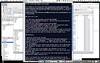
As an update to my previous post about wishing full-screen mode were more ubiquitous, I wanted to share a combination of apps and tips that's been working well for me (thanks in part to the great comments over in that thread). Tools you'll need
Setting up
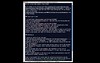
Ta-da. A serviceable full screen mode for minimizing distraction and the myriad attractive nuisances in your world. Maybe not as fancy as the built-in functionality in MacJournal, DevonThink, or Ulysses, but close enough for government work -- and usable across the range of apps in your life. 3 Comments
POSTED IN:
 [...] Oh, one sweet day...Submitted by Full screen mode at Textworker (not verified) on April 17, 2006 - 11:40pm.
[...] Oh, one sweet day even Mellel will go full screen. But until then you either take Ulysses or Jer`s Novel Writer… or try some tricks. [Link] [...] » POSTED IN:
|
|

| EXPLORE 43Folders | THE GOOD STUFF |


