43 Folders

43 Folders feed subscription icon - Shiny! Drowning in email? Try Inbox Zero to learn sane tips for dealing with high-volume email. And don’t miss the free Inbox Zero video. »

Login or register

Register for free on 43 Folders to comment on articles, post to our forum, customize your visits, and much more. Current users can login now.

Use Quicksilver to navigate around dialog boxes; Default Folder plug

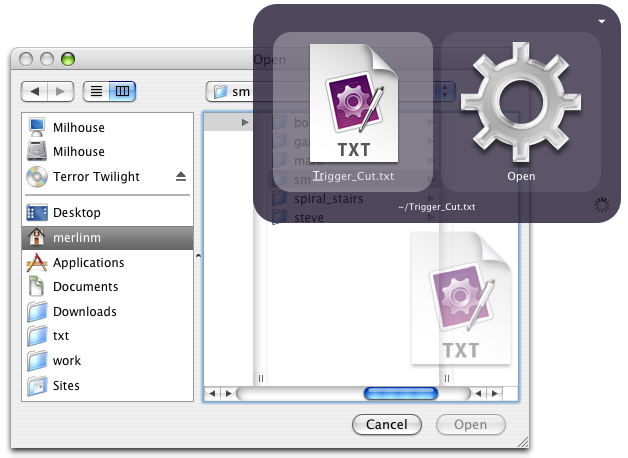
Drag Into Dialog Boxes - ScreenshotIf you’re in a dialog box, you can quickly jump to the item or location you’re after by using Quicksilver.

With the dialog box open, invoke Quicksilver, and pull up the file or folder you want to target as usual. When your match comes up, drag the icon for the item from Quicksilver into the dialog box, and you’re done (screenshot).

Bit of a piffle until you really start using it and realize: you now have yet another way to pipe your life through Quicksilver and avoid repetitive clicks and drill-downs. Also, note that this “drag in or out of Quicksilver” function works pretty much everywhere (and possibly just completely changed the way you work if you didn’t know that already).


On a related note, I should put in a plug here for a brilliant companion app that I’ve used since Christ was a corporal: Default Folder. In addition to totally tricking out your dialog boxes and adding tons of helpful functions, it lets you—from within a dialog box—click any open folder in the Finder to make that the target folder in the dialog box. The window doesn’t even have to be the frontmost window. This is a huh-uuuge timesaver. So worth the $, especially if you move around in lots of files each day or frequently “Save as…” multiple versions.


Got a good trick for Quicksilver dragging? Leaned “the comma trick” yet?


37 Comments

Comment viewing options

Select your preferred way to display the comments and click "Save settings" to activate your changes.
David Ham's picture

Wait, comma trick? I hit...

Wait, comma trick? I hit the comma key and it put a tiny NetNewsWire icon below the main one in the QS window. What does that do? And more importantly, how do I remove one of the tiny icons, in case I accidentally added two?

Merlin Mann's picture

It's adding those selected documents...

It’s adding those selected documents or folders to your working stack; you can fly all over the place adding items to do “something” to.

Just ESC to get out.

Super handy stuff.

Dan Phiffer's picture

This is sort of a...

This is sort of a silly thing to point out, but the term dialog box is a category of controls that includes things like alert messages, which don’t have any use for filesystem paths.

Neat trick though. The best one I can offer is setting up a trigger for rescanning your Applications catalog. This saves me a little time right after I’ve installed a new app.

Jon Gotow's picture

Thanks for the praise for...

Thanks for the praise for Default Folder! I’m the author :-) I just wanted to let you know that your link points to the Mac OS 9 version of Default Folder not the OS X version. You really want to point to http://www.stclairsoft.com/DefaultFolderX/. Thanks!

Doug's picture

Great to see Default Folder...

Great to see Default Folder get a mention. It’s been around for so long that I think it sometimes gets overlooked, but it’s been on every Mac I’ve ever used!

Merlin Mann's picture

So many corrections! I feel...

So many corrections! I feel like Dave Winer. ::ducks::

@Jon: Thanks for the correction and the wonderful product. Default Folder has saved me months of time over the years, and I want everyone to know it! (yes, you may use that) :-)

@Dan: Thanks for that. So what should I call the widget that lets me decide where to open or save a document?

James Rifkin's picture

File Dialog...

File Dialog

kathryn's picture

Excellent work, Mr. Mann. This...

Excellent work, Mr. Mann. This works awesomely with uploading files via your web browser as well, I should note. Open File Dialog, do some Quicksilvering, and then drag-and-drop. And if anybody can come up with a keyboard shortcut for the drag-and-drop step, that would rule twofold.

Mathew Hoy's picture

i can never remeber this:...

i can never remeber this: when i’m appending text to a file, how do i create a list? i.e.: i have a list of items i want to add to the file. how do i create an “end of line” marker? does that make sense? is the reason i can’t remember this because you can’t do it?

Merlin Mann's picture

No sweat, Mathew: "OPTION-return"...

No sweat, Mathew: “OPTION-return”

Mathew Hoy's picture

gaah. i was using shift+return...

gaah. i was using shift+return and nothing. :( thanks.

Mathew Hoy's picture

hehe. i just realised i...

hehe. i just realised i can do this: i’ve a todo text file on my ipod. i can use quicksilver to prepend an item to the list on the ipod and not have to open the pod’s file to change it. hawt.

Mathew Hoy's picture

actually, i just realised i...

actually, i just realised i cannot! :) whenever i type some text, tab to append or prepend, then tab to the file on my ipod and hit return, i get this PING sound and nothing happens. :(

Mathew Hoy's picture

okay, 1 more post. i...

okay, 1 more post. i can. :) i had to rescan my catalogue after changing my file to a .txt extension.

Jeff's picture

Comma trick: (lots of heavy...

Comma trick: (lots of heavy breathing) I had no idea. It’s so cool I feel a buzz. Wonderful. And drag from the bezel? I’d never even tried it. All this time I’d been using QS to reveal the location and then drag that into the file dialog. Sheesh, this just cut the effort to less than half. Excellent!

Aaron Cass's picture

I recently learned that I...

I recently learned that I could drag from the QS bezel and I use it to add attachments to e-mail. So instead of bringing up the file dialog for attaching a document, I search in QS and drag to Mail. Makes a once frustrating task very easy.

Alcor's picture

Drag it to mail? What...

Drag it to mail? What about using the paste action on the file while the message is open or compose the message in QS directly.

Merlin Mann's picture

@Aaron: So another flavor of Alcor’s...

@Aaron:

So another flavor of Alcor’s recipe might go like this (assuming we want to attach “foo.txt” from the Desktop):

  1. Invoke QS
  2. Type til you get “Desktop” & hit “/”
  3. Type or select “foo.txt”
  4. Tab to the 2nd pane
  5. Type til you get “Email To…(Compose)”
  6. Tab to 3rd pane
  7. Type til the name of your contact comes up
  8. ENTER or RETURN

Ta-da.

Sounds long, but, in my test, the whole thing took me 7 seconds.

It so pays to get fast at Quicksilver.

Aaron Cass's picture

To Merlin and Alcor: Yes, I...

To Merlin and Alcor:

Yes, I could attach to a new e-mail from QS, but if I’m already in the middle of composing an e-mail, why start afresh?

With the mail window already opened, I’m sure I spend less than 7 seconds attaching the file.

Merlin Mann's picture

I see what you're saying...

I see what you’re saying Aaron.

I think it’s cool that QS has really brought the Perl mantra of “There’s More Than One Way to Do It” to the GUI.

I do love it.

Brian Donovan's picture

You can do this without...

You can do this without the drag and drop part, but it requires you to have enabled access for assistive devices in System Preferences -> Universal Access.

To do it, get the script and follow the directions on that page.

Andy's picture

So does that text file...

So does that text file contain the lyrics to “Trigger Cut”? Such a great song!

Tarek's picture

The one thing I'd add...

The one thing I’d add to your workflow, Merlin, is to make sure that you don’t select “Email to… (Send)” as the action, as that will actually send (duh) the email without allowing you the opportunity to write any accompanying text.

(Not that I’ve done this or anything… )

Merlin Mann's picture

I know, Tarek! That's a...

I know, Tarek! That’s a loaded gun. :)

I totally did that within 5 minutes of loading Quicksilver for the first time. Very embarrassing.

Strict's picture

On a related note you...

On a related note you can use QS to choose wich application to open a file with by:

  1. invoking QS;
  2. pull up the desired application
  3. drag the file you want to open onto the app icon

I find it useful to open Photoshop-associated images with Preview or to open text files in BBEdit.

Mathew Hoy's picture

qs ?: now that i...

qs ?: now that i know how to add items to a file, is there a way to open text in the qs bevel from a .txt file and delete items? that would be hawt.

macfixer's picture

What app made that TXT...

What app made that TXT file? So sexy…

//k

Brian Donovan's picture

macfixer: TextMate...

macfixer: TextMate

Steve Bissonnette's picture

Just so you know, In...

Just so you know,

In any mac os 10.x open/save dialog box : You can drag an outside folder/disk/item onto the dialog box while it’s on screen to “bring up” that path and filename .. hard to explain - just try it and you’ll see what i mean …

You don’t need default folder for this trick.

Merlin Mann's picture

Steve: Can you "point" to...

Steve: Can you “point” to open windows in the Finder to call them up in the dialog box (without changing focus)?

I thought that still required Default Folder, but I could be wrong (since I’ve had DF installed for years and wouldn’t know the diff. :-) ).

 
EXPLORE 43Folders THE GOOD STUFF

An Oblique Strategy:
Discard an axiom


STAY IN THE LOOP:

Subscribe with Google Reader

Subscribe on Netvibes

Add to Technorati Favorites

Subscribe on Pageflakes

Add RSS feed

The Podcast Feed

Inbox Zero

The original 43 Folders series looking at the skills, tools, and attitude needed to empty your email inbox — and then keep it that way. Don’t miss the free video of Merlin’s Inbox Zero presentation.

Get Started with ‘GTD’

David Allen’s popular productivity book and the system on which it’s based help turn ‘stuff’ into actions that support valuable outcomes.