43 Folders

43 Folders feed subscription icon - Shiny! New to 43 folders? Here are our All-time Most Popular Posts. Want the best stuff? Here are our Classics.

Login or register

Register for free on 43 Folders to comment on articles, post to our forum, customize your visits, and much more. Current users can login now.

Process email faster with Mail Act-On

My usage of Mail Act-On, while far from novel, has revolutionized the speed with which I can blow through email processing.

If you’ve never seen it before, Mail Act-On is a very clever Mail.app plugin that lets you create key commands that execute Rules you’ve generated in your Preferences. Sounds pretty dull, right? Absolutely. Until you start putting this stuff into action and learn how painfully slow all that draggy mc drag drag business is. Here’s how I’ve set mine up.

Step 0: Remap “Caps Lock

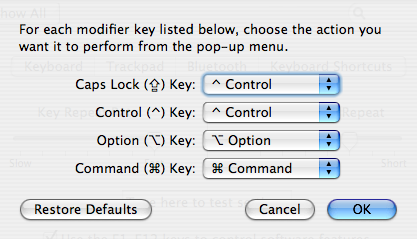
First off: do yourself the biggest favor ever, and make that stupid “Caps Lock” key into something more useful. In the months since I first mentioned remapping this typewriter relic using third-party utilities, the folks behind OS X have been kind enough to bake it right into the Keyboard & Mouse PreferencePane (“[Apple] > System Preferences... > Keyboard & Mouse > Keyboard > Modifier Keys”).

As your attorney, I advise you to immediately map “Caps Lock” to “Ctrl” since it’s about to make your life a little better, thanks to Mail Act-On — which relies heavily on the “Ctrl” key, as you’ll see — although you’ll get way faster at many key commands as a result. Plus it doesn’t bend your pinky up all weird.

Okay, with that nonsense out of the way, let’s go make some rules.

(Important: If you’ve never set up Mail Act-On rules before, there’s a few things you’ll need to know, so be sure to first check out the FAQ).


To archive

This first one is really basic, although it’s certainly the one I use most — moving selected messages to my Archive folder.
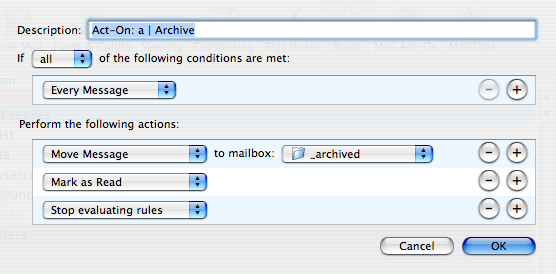
That should be mostly self-explanatory, except remember that you can only add currently-visible mailbox sub-folders to a Mail.App rule. If you can’t find the folder you want, cancel out and make sure it’s first visible in your mailboxes and folders list over on the left (flip the little “reveal” triangle until you can see the folder you want).

Next up, it gets a bit more interesting.

To respond

This one is a workhorse; it takes the selected messages, flags them, and moves them into my Respond folder.
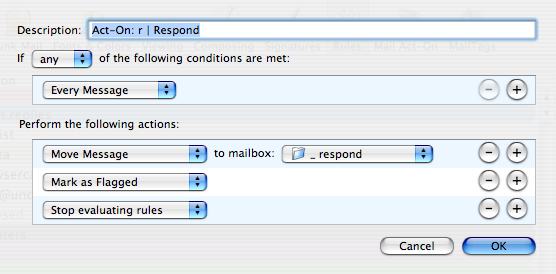
As I’ve said, I use a combination of flagging and mailbox location to create Smart Folders — that way I can quickly glance, say, messages I’ve received 3-7 days ago that still need a response.

Handy way to catch up or just to make sure things don’t fall between the cracks.

To respond…some time

The next one shows a really simple example of how you can make Mail Act-On work in concert with its muscle-bound big brother, Mail Tags.
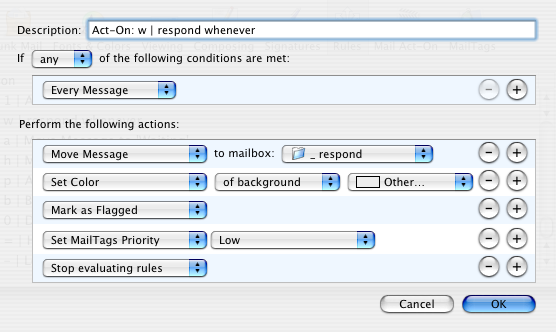
In this case I’m adding a priority tag that — again with Smart Folders — gives me control over what kind of un-responded email I want to see. This rule gets a workout whenever I get mission-critical epistles like “Will you review my $500 Windows app?” and “You should totally link to photos of my kitty!”

Like most GTD-ers, I don’t like to rely too heavily on prioritization as its own thing, but if I’m traveling or whenever things get really hectic for a few days, I need a fast way to separate the wheat from the chaff, and this helps a lot with that.


I’m really just scratching the surface on what you can do with Mail Act-On — I’m sure there are power users out there who are doing much sexier stuff with it — but I wanted to make sure people know that this is most definitely not just for geeks and high-volume email users. In my opinion, this is functionality that should (and eventually will) be included as a stock feature in Mail.app.

As I said in Inbox Zero, excellent processing is one of the ninja email moves. And for even the most casual user of Mail.app, Mail Act-On can make that road to ninjahood so much faster and less annoying.


16 Comments

Comment viewing options

Select your preferred way to display the comments and click "Save settings" to activate your changes.
Dara's picture

I use Act-on for tagging...

I use Act-on for tagging messages mostly — bills, client email, newsgroups, etc. But I also found it very useful for forwarding mail to my husband — some of our household bills and faxes come to me. Now I simply hit ctrl+P and it forwards the main to him with a cute little canned message from me, then deletes it from my inbox. Very handy.

to Vincent van Wylick: I use Mail-Tags in combination with Act-on. This allows me to use Act-on to assign key tags, then use smart folders — instead of actually moving the message out of my inbox (which is key with IMAPing).

TommyW's picture

Mail Act-on was one of...

Mail Act-on was one of the reasons I switched back from Mailsmith. That and Mail Template.

What I like about Mailsmith was the rules implementation, but what MailAct-on allowed me was the use of rules on an adhoc basis. I have about 10-15 separate commands, mostly sending to different folders: Actionable, Review, Monitoring, and several key project and company folders. It ends up being far more flexible and process-y as a result.

It’s one of the main tools in keeping the old Inbox empty.

Nathan Williams's picture

These seem valuable, but only...

These seem valuable, but only as workarounds for a fundamentally inefficent UI. I know you’re a text fan; wouldn’t a mail program like mutt or Gnus suit this model of operation better? It’s rare that any task takes more than a few keystrokes in either app.

Hawk Wings » Blog Archive » Mail Act-on Tricks f's picture

[...] Merlin Mann, 43 Folders...

[…] Merlin Mann, 43 Folders productivity bodhisattva, offers some tips on using Mail Act-on to increase productivity and handle the hackwork of filing and processing your emails. […]

Robert C.'s picture

Merlin, you have my thanks--not...

Merlin, you have my thanks—not because I’ll use Mail Act-on (I’m Gmail), but because now the caps lock key will no longer get turned on by accident. Using it as ctrl is good, but the best part is just not having it there to get turned on by my clumsy fingers. Apple would be the perfect company to lead the way in sending the caps lock key the way of the floppy disk (they probably keep it around just to bug Tog, wherever he is). Until that day, this is the next best thing. Thanks.

(After using caps lock as ctrl for a minute… that key, where caps lock sits, is really prime real estate, isn’t it? Easier to press than command or any other modifier key. All the modifier keys could be better-placed, considering how often they get used.)

Liz's picture

I keep some of my...

I keep some of my more active e-list archives in separate folders. I delete most posts, but I have set up several Act-On rules, all on the same key command, that take the highlighted post and move it into the correct folder.

So, `A if I’m reading a List1 post will sent it to the List1 mailbox, but if I’m reading a List2 post, will send it to the List2 box.

Fewer commands to remember

Joerg's picture

I just need two (!)...

I just need two (!) Mail-Act-On-Rules to process all my E-Mail because I “live” in kGTD. I have a rule to archive my mail and I have a second rule to send the mail to kGTD (using the script “Mail 2 kGTD”) and archieve it.

When I take a look at my inbox, I go through my mails. Then the GTD-process starts. E-Mails to which I can reply immediatly will get an immediate response. Mails I what to keep for information are sent to the archieve. And mails I want to act on and need some time are sent to kGTD and archieved. The smart thing of Mail2kGTD is it creates a link to the archived email. So when it is time to act on the email I just need to click on the link in kGTD and the E-Mail springs up.

That’s it. So all my todos are in one list which the references to the original material and my inbox is empty and all my emails are archieved.

Tlach's picture

I'm not clear... I'm a...

I’m not clear… I’m a huge fan of remapping-capslock-to-ctrl but how does this make life easier in Mail Act-On? I’m missing the connection.

huxley's picture

Tlach, Merlin mentioned that Act-On uses...

Tlach,

Merlin mentioned that Act-On uses the CTRL key quite a bit. I think however that he drew attention to it because it will make your life alot easier in general.

Vincent van Wylick's picture

Some things I don't like...

Some things I don’t like about this… more to do with the way Mail is set up perhaps.

  1. Moving important mails to a Mac-folder actually moves to to a lower spot on the screen, the highest is just under the Junk-folder.
  2. There is no option to mark messages as unread, making a nice bold number of unanswered mail appear next to the folder
  3. The folder looks just like any other folder

A thought. Wouldn’t it be better to not move ‘to respond’ messages, and instead just create a short-cut to mark it red or something? I realise that this goes against the whole ‘empty mailbox’ thing, but I’m curious how other people have dealt with these issues.

Smorr's picture

[quote]There is no option to...

[quote]There is no option to mark messages as unread, making a nice bold number of unanswered mail appear next to the folder[/quote]

My MailTags plugin allows a rule to mark a message unread (and unflag) I have looked at a way of displaying # of messages in a a folder in addition to the # of unread. but I haven’t figured it out fully — perhaps in a future version of mailtags.

Vincent van Wylick's picture

Thanks Evan, That works very...

Thanks Evan, That works very well indeed!

GTD: Mail Act-On « Die Kritiker's picture

[...] Über Merlin Mann bin...

[…] Über Merlin Mann bin ich auf dieses kleine und effektive Werkzeug gestoßen. Ohne geht es nimmer! […]

JP Craig's picture

Caps-lock elimination is a perennial...

Caps-lock elimination is a perennial topic on Slashdothere’s one example — and the idea is generally shot down. I use the caps-lock key quite a lot, and I don’t think it’s going away soon. Here are a few of they ways it is used: as a modifier key already in some applications; in coding, which is case-sensitive; and it is used in some high byte count languages like Pashto, Arabic, and Chinese to switch between characters rather than cases. Since this is an efficiency-oriented site, I will point out one of my uses. I use caps-lock as a very convenient way, available across the entire UI, to indicate provisional or comment text in my professional writing. There are a number of tools, such as SpellCatcher, that let you switch rapidly to normal capitalization; Word even does this for you. So, don’t disparage the caps-lock key; think of it as a trailer-hitch; your car may not need one, but mine may.

Handiest Hint EVA « Thoughts on the Ideal's picture

[...] Merlin Mann says: “First...

[…] Merlin Mann says: “First off: do yourself the biggest favor ever, and make that stupid “Caps Lock” key into something more useful. In the months since I first mentioned remapping this typewriter relic using third-party utilities, the folks behind OS X have been kind enough to bake it right into the Keyboard & Mouse PreferencePane (”[Apple] > System Preferences… > Keyboard & Mouse > Keyboard > Modifier Keys“).” […]

Evan's picture

I found an applescript that...

I found an applescript that will allow you to mark a message as unread. You can run this script in a rule as “run applescript.” It’s pretty handy for my “Respond To” mailbox. Here’s the url http://developer.mabwebdesign.com/blog/?p=111

 
EXPLORE 43Folders THE GOOD STUFF

An Oblique Strategy:
Only a part. Not the whole.


STAY IN THE LOOP:

Subscribe with Google Reader

Subscribe on Netvibes

Add to Technorati Favorites

Subscribe on Pageflakes

Add RSS feed

The Podcast Feed

Inbox Zero

The original 43 Folders series looking at the skills, tools, and attitude needed to empty your email inbox — and then keep it that way. Don’t miss the free video of Merlin’s Inbox Zero presentation.

Get Started with ‘GTD’

David Allen’s popular productivity book and the system on which it’s based help turn ‘stuff’ into actions that support valuable outcomes.