43 Folders

43 Folders feed subscription icon - Shiny! New to 43 folders? Here are our All-time Most Popular Posts. Want the best stuff? Here are our Classics.

Login or register

Register for free on 43 Folders to comment on articles, post to our forum, customize your visits, and much more. Current users can login now.

Revenge of the Smart Playlist: 5 tricks for packrats & power users

The success of yesterday’s post on the basics of Smart Playlists makes me think you might enjoy seeing a few more. So, today I want to show you how to get control of a very large iTunes library — to save space by getting rid of stuff you’re not enjoying or listening to, as well as bubble up stuff you may not even realize you like.

If you are an iTunes packrat but feel overwhelmed by your collection (or are simply running out of drive space), try these recipes for Smart Playlists to help you get it together.


Step 0: Backup

Before doing anything too fancy with your iTunes (or with anything else for that matter), always do a backup.

This could be as simple as dragging your library to an external drive, although personally I’d recommend a smarter tool — I recommend rsync for geeks, and ChronoSync for civilians.

In any case, don’t yell at me if you get confused and permanently delete your heirloom recordings. ‘Nuff said.

Big and Useless

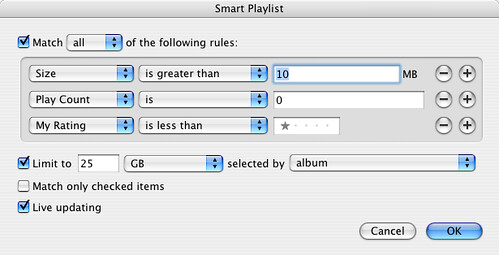
This is the dullest instrument in our drawer, but if you’re on deadline for a video editing project and suddenly realize you have 200mb of disk space left — well, you need to delete some shit fast.

This Smart Playlist, as you can see, looks for the biggest bang for the buck in terms of deletion. It’s the fastest way to find very large files that you aren’t listening to much. You could also use something like What Size for this, but, you know, that would be cheating.

Admin Playlist : Big and Useless

Basic Culling

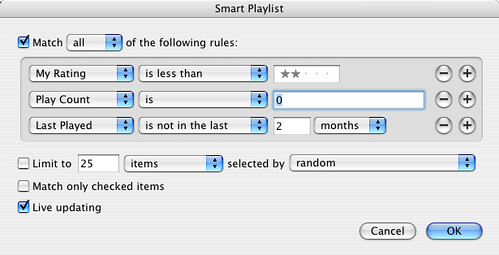
This one’s not much more sophisticated, but, if you’re doing regular backups, it’s my favorite way to quickly and responsibly reduce the disk space used by your library. As with many of these lists, you’ll start to see the value of rating your music; in addition to improving the quality of your lists and listening experience, it eventually becomes a quick way to determine which music you can afford to dump in a pinch.

Admin Playlist : Basic Culling

Old Podcasts

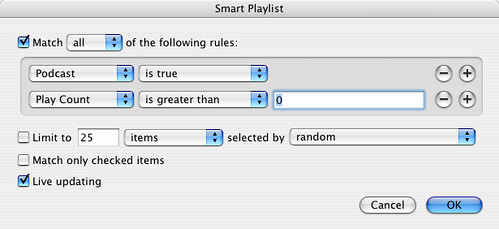
Man, if you aren’t careful, podcasts will eat your lunch. Although iTunes provides useful tools for managing the number of eps you keep, per podcast series, you’ll be amazed how quickly old episodes will fill up your drive.

This little fella does something insanely simple but critical; it pulls up any podcasts that you’ve already listened to, making it easy to select them all and delete quickly (without lots of COMMAND- clicking in the “Podcasts” window)

Admin Playlist : Old podcasts

Sure you really like that?

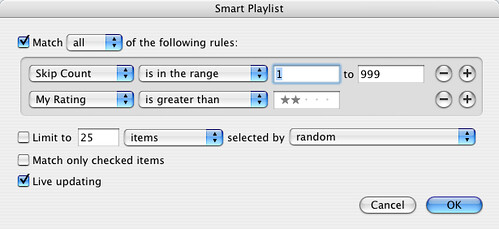
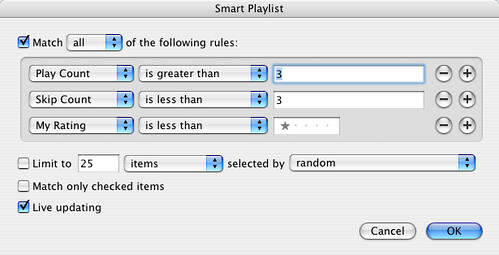
This simple auditor calls you on your ratings. It looks at your higher-rated songs and sees if you’re skipping them often — a good sign you don’t like them as much as you claim. Very helpful way to refactor if you realize you’ve gotten too enthusiastic with the 5-star ratings.

Admin Playlist : Sure you really like that?

Rate these

This does something like the opposite of the previous list — it pulls up songs that you’ve listened to a lot but have never rated. Again, if you’re going to get the most out of your Smart Playlists, it pays to rate stuff you have a strong opinion about. This is one of the fastest ways to do that.

Admin Playlist : Rate these


You get the basic idea at this point. By tagging the crap out of your songs, adding correct genres, and rating rating rating, you can produce a library that is both more enjoyable and way more manageable. Even if you save every track you’ve ever added, you can always benefit from the history of your behavior that iTunes has collected and exposed.


57 Comments

Comment viewing options

Select your preferred way to display the comments and click "Save settings" to activate your changes.
evilspoons's picture

For those who haven't seen...

For those who haven’t seen skip count, I’m fairly sure it was added in iTunes 7 and doesn’t exist prior to this… at least on the Windows side of the coin.

As for the backup, Windows users can get Microsoft’s Synctoy for Windows XP, which does a half-decent job of copying files places for backup, but I’m fairly sure setting up rsync would result in a more efficient backup process, speed-wise.

JB's picture

How about using the new...

How about using the new feature of Itunes that lets you select multiple Libraries? I keep 4 libraries on my system Music Spoken Word (Audiobooks and Saved podcasts) Comedy Christmas Music

Just hold the option key when you start up Itunes, you can setup a new library or select an existing one.

Smart Playlist - iTunes « gp's picture

[...] Revenge of the Smart...

[…] Revenge of the Smart Playlist: 5 tricks for packrats & power users […]

Untitled Image » Blog Archive » iTunes Tips: Sma's picture

[...] Revenge of the Smart...

[…] Revenge of the Smart Playlist: 5 tricks for packrats & power users […]

JestuWhat's picture

Thanks Merlin! I'm down @...

Thanks Merlin! I’m down @ 41% of 60g without an external or blank cd-rw’s. I know it’s all the netcasts of video and audio that I want to keep, but some I barely touch when I download an episode without subscribing. Unfortunately, they get lost in the shuffle never to be seen until I reformat the drive.

Rock's picture

one thing i should bring...

one thing i should bring up, that i forwarded to macfixit when itunes 7 first arrived on the scene, is that the algorithm that itunes 7 uses for determining whether a track has been “skipped” or “played” is really dodgy. in itunes 6 and previous, you had to listen to a track to the last possible second for it to be counted as played. so if you were using a smart playlist to count tracks being played, and you were at your desk and decided to didn’t want to listen to the fade out at the end of a track and hitt he fast forward button, it wouldn’t be counted. that made the “most played” smartlists pretty unreliable.

now, the track doesn’t need to play through all the way, but i can’t seem to figure out how much itunes 7 needs to play through before it will consider it played. is it a percentage? is it number of seconds remaining? no clue.

and “skipped” is even more schizophrenic. i had my music library selected, and just wanted to listen to all of the songs by one artist. type the name in the search field, blammo. instant playlist. hit randomize button and start listening. of course, i started skipping through the songs, but i was watching the skip count. from what i could tell, about half the time, if i skipped really quickly (the first second or two) it wouldn’t even register as skipped. huh? it was as if itunes 7 was saying “well, how do you know if you don’t like it if you don’t even give it a chance? i’m not adding this to your skip count…” if you let the track get in at least 5-10 seconds and skip, it usually added one to the skip count. but again, not always. utterly bizarre, mostly because it’s so darned unpredictable. if anyone has access to apple’s notes on how the new “played” and “skipped” counts are actually incremented, i would like to have a look.

TC!'s picture

One thing which would be...

One thing which would be useful is to know other people’s ideas on hwat the star ratings mean to them.

For me it works like this:

1 - poor - delete without any thought 2 - ok - delete if space required 3 - good 4 - very good - always happy to hear 5 - the very best

That way I know if I have a playlist with more than three stars I’ll always hear stuff I really like. Most of my songs are 3 stars, I do have playslist where I include 3 star songs and I find myself moving them to 2 or 4 star ratings as I hear them more.

I have similar ideas for iPhoto / Aperture ratings:

1 - delete - bad quality / out of focus 2 - delete if space needed - fix able but not very good 3 - good should keep 4 - very good and should print 5 - the very best definitely print and show to people!!

Ryan's picture

I've been slowly catching up...

I’ve been slowly catching up on rating songs using the Rate These smart playlist. I use the Synergy pref pane to interact with iTunes. It allows me to add ratings, advance songs, etc.

What I noticed when using the Rate These playlist is that I could only get in one star (using the Synergy key combo) before the song disappeared from the list. My suggestion would be to uncheck Live Updating while you’re actively trying to rate songs.

Luke's picture

I use a set of...

I use a set of playlists so complicated that I can hardly remember what they all do. They’re extremely useful for sorting through and rating my constant supply of new music. Excuse the lame names. The first thing I use is a “Recently Added” smart playlist that I use to find new music. The next playlist is “The Great Divide”. It is fed by a regular playlist that I add new files to that I want to listen to and sort. If I listen to something on that playlist twice without rating it, it leaves the playlist. If I give it a rating below three, it gets killed off as well. 3 or 4 or 5 start songs go on to “Potential”. If a song gets played three times and has a four or five star rating it gets added to my favorites playlist. If not, it’s layed to rest. This works very well if you have limited space on your ipod (I have a nano) and has a real radio feel to it.

Like Your Work » Blog Archive » links for 2006-1's picture

[...] Revenge of the Smart...

[…] Revenge of the Smart Playlist: 5 tricks for packrats & power users | 43 Folders (tags: apple osx itunes) […]

Ross Hill's picture

For those who don't have...

For those who don’t have time to rate their library there is a osx program called iRate which can be set to scan through every track and rate it based on “how many times it has been played/time you’ve had it” or something like that.

Very useful for a 10 day long library :)

CK's picture

Ironically, I struggled with finding...

Ironically, I struggled with finding a good way to start this task not only because the idea of rating over 8000 songs seemed hellish, but because I couldn’t get my head around a balanced rating system. Initially, it seemed like only three stars would be needed, though five allows for a bit more nuance. This got me up and running fast, but requires some long-term vigilance in order to fine tune. Here’s what I did:

First, bulk edit any artists or albums you like to listen to at any time with three stars automatically.

Four stars are reserved for your favorite bands. Think of it as an automatic extra star for just being the Pixies. Hello Pixies.

A five star rating is a “break glass in case of emergency” song. These are ice-cold awesome songs so powerful (or classic) that deserve special treatment. A good way to determine what constitutes a five is to sort by rating. For instance, as much as I may love The Misfits’ “Astro Zombies,” it is not in the same league as “Everlong.” You should not have too many fives. At most they should constitute around 10% of your library.

Promote and demote as needed along these lines. A “meh” song on an otherwise great record? Give it a two. A great song on a three star record gets bumped up to four. One star ratings are reserved for songs that are only worth listening to for that cool high-hat fill in the bridge.

TV themes, novelty tunes, comedy records, and whatever’s left over get no rating. This allows you to weed the suckage out of your smart playlists pretty quickly and gives you a nice chunk of unrated junk to check out at your leisure. And since iPods allow you to rate songs as well, you can save some of the detail work for the road after synching up.

Coupled with correct genre tags and (I’ve found) year tags, you’ll have a pretty good ability to quickly pull some sweet playlists together.

A_Geek_Apart - Free up some hard drive space via iTunes's picture

[...] The folks over at...

[…] The folks over at 43folders have posted about an ingenious way to find those huge space hogs in your iTunes library and destroy them. The secret? The iTunes Smart Playlist. […]

J.Michael's picture

I just trimmed 6 GB...

I just trimmed 6 GB off my powerbook HD using the “old podcasts” list. Brilliant. Simply the most effective way to free up space on my drive that I’ve come across. Thanks Merlin.

Fonzo's picture

Good tips. The only...

Good tips. The only thing I noticed is your playlists seems overly complicated. I struggled with building a good playlist structure until I finally landed on this solution. It divides your music into likes and dislikes (using star ratings), and loads your iPod appropriately (more likes than dislikes).

The Daily Loper - November 13, 2006 | Medialoper's picture

[...] Revenge of the Smart...

[…] Revenge of the Smart Playlist: 5 tricks for packrats & power usersMore iTunes tips for those of you with more music than free time. By Lopy The Loper | posted in The Daily Loper Tag at del.icio.us | Incoming links […]

Shane's picture

Sorry, that URL for the...

Sorry, that URL for the logic professor’s blog was all mashed up for some reason. Here it is again: http://consequently.org/news/2006/02/04/fun_with_playlists_squeezing_your_music_library_onto_a_2gb_ipod/index.php

Is anyone using the grouping or category slots at all? I’ve found them useful for sub-classifying genres even further, then creating playlists that slice through my library in several different directions. For instance, a certain track by the band Gorguts may have have “Death Metal” as it’s genre and “Experimental” as a grouping. This makes it easy for it to end up in a playlist with, say, Captain Beefheart, in the genre “Rock”, and grouped as “Experimental”, and Ornette Coleman, “Jazz” also grouped as “Experimental”.

One improvement that would be great would be to allow the creation of even more genre tags.

Also, since I’ve been using automatic lyric-finding software like pearlyrics , I find myself wanting to make smart playlists based on lyrics. Songs that mention cheese? Country songs that mention dogs or cats? The possibilities are endless…

Keith's picture

I also can't find a...

I also can’t find a way to delete from Smart Playlists… in Windows. Any suggestions?

Keith's picture

Never mind; Shift-Delete seems to...

Never mind; Shift-Delete seems to do the trick!

Thanks for the great ideas, K.

Gerard's picture

Plenty more good playlist ideas...

Plenty more good playlist ideas at http://smartplaylists.com/

Revenge of the Smart Playlist: 5 tricks for packrats & p's picture

[...] read more | digg story [...] ...

[…] read more | digg story […]

Eric Nentrup's picture

To keep my library organized,...

To keep my library organized, I use Libra (http://www.versiontracker.com/dyn/moreinfo/macosx/22029).

I keep my stock music library (for multimedia production) in a separate library than my personal collection.

John's picture

Google "Doug's Applescripts" for unlimited...

Google “Doug’s Applescripts” for unlimited iTunes usefulness.

Not played in the last however many months is very good for iPod playlists.

I like using a “Rotation” playlist. I put stuff in there that I either want to listen to again or haven’t listened to yet but want to. It also gets synced to my nano. It fills 1/2 of my iPod usually, with the other half split between top rated tracks that haven’t been played in at least 6 months and an assortment of unplayed tracks. (I have about 100 gigs of music that still has a playcount of zero.)

iPods (at least nanos) don’t talk skip count, so it’s not as useful as it might otherwise be.

Getting rid of artwork is silly!

Peter Garner's picture

Merlin, Call me stupid, but I...

Merlin,

Call me stupid, but I just don’t get the “Basic Culling” list. First off, if you’ve never listened to something, why would it be rated anyway? I don’t rate my songs, but if I did, I certainly wouldn’t rate them without at least one listen first!

Second, if a song has a play count of 0, isn’t it obvious that it hasn’t been played in the last two months either?

The only way I see this list being useful is if “Match All” is changed to “Match Any.” Or is there something really basic I’m missing?

folleyball's picture

Tagging songs in iTunes... Maybe it...

Tagging songs in iTunes…

Maybe it is just me, but the greatest personal benefit of web2.0 to me is not the “social” aspect, but the tagging. I am a digital pack-rat; I always have been. The problem with being a pack-rat in the paradigm of folder/file is actually fi…

links for 2006-11-11 « Constitution Hill's picture

[...] Revenge of the Smart...

[…] Revenge of the Smart Playlist: Wow! So many hours of procrastination will stem from this one post I want to prostrate myself at Merlin Mann’s feet. (tags: kottke itunes music playlists procrastination) […]

Kelly's picture

Good stuff. I've been forcing...

Good stuff. I’ve been forcing myself to rate my songs, lately. It really does help in setting up playlists, etc…

One tip I can offer for easy rating, is through your fav Quicksilver. I have setup QS to rate currently playing song using keyboard shortcut Control-1, Control-2, etc.. This makes it super easy while I work to rate them.

Craig's picture

@Ryan Option-delete should delete the selected...

@Ryan Option-delete should delete the selected song from your library and all playlists, I think.

Ryan's picture

Some nice Playlists,thanks. One thing...

Some nice Playlists,thanks.

One thing I’ve never been to figure out is how to delete all of the songs from within the playlist. So, while the playlists are great for collecting the songs together, right now I still have to go back into the Library to move the files to the trash. Or am I missing something huge?

grant's picture

I wish I could remember...

I wish I could remember the name of the app that did this for me, but I recently gained a couple gigs of disk space by running something that deleted the album art from my iTunes files. Graphics. Things that aren’t actually audio, in other words, but that bloat up the directory anyway.

 
EXPLORE 43Folders THE GOOD STUFF

An Oblique Strategy:
Only a part. Not the whole.


STAY IN THE LOOP:

Subscribe with Google Reader

Subscribe on Netvibes

Add to Technorati Favorites

Subscribe on Pageflakes

Add RSS feed

The Podcast Feed

Inbox Zero

The original 43 Folders series looking at the skills, tools, and attitude needed to empty your email inbox — and then keep it that way. Don’t miss the free video of Merlin’s Inbox Zero presentation.

Get Started with ‘GTD’

David Allen’s popular productivity book and the system on which it’s based help turn ‘stuff’ into actions that support valuable outcomes.