Merlin’s weekly podcast with Dan Benjamin. We talk about creativity, independence, and making things you love.
Sending short email messages from within Quicksilver
Merlin Mann | Aug 10 2005
I’ve recently gotten in the habit of using the email subject line alone to convey a short message. The old-school best practice of geeks in this matter is to end a self-sufficient subject with
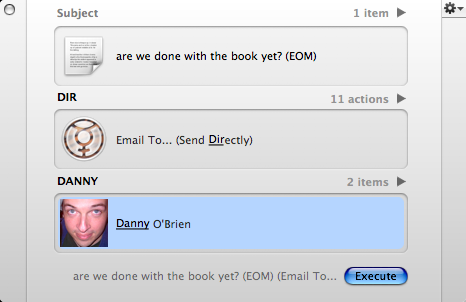
Neat trick here for Quicksilver users to dash off an EOM-type email from right inside the app. (Yes, I assume this requires the Mail and Address Book plugins, possibly others, yadda yadda yadda).
If everything is configured right, this should send an email with the contents of step 3 as both the subject and the body of the message. Of course, this would also work really well with Andrew’s Gmail To-do and Journal system among many other things, but I love it especially as way to quickly dash off a super-efficient email without changing modes. And most recipients love the brevity, so everybody wins. 13 Comments
POSTED IN:
 In fact, you can also...Submitted by jrk (not verified) on August 12, 2005 - 3:05pm.
In fact, you can also send complete messages from Quicksilver in the same way by using '>>' to separate the subject from the body. For example, What's with your TPS Reports... >>[option-return] Did you get the memo?? will send the message with the subject "What's with your TPS Reports..." and body "Did you get the memo??" You can type newline characters in the text area by pressing [option-return], as I suggested there, but it's not necessary for the >> trick to work. It's a great way to fire off quick messages, even if they're not one-liners. » POSTED IN:
|
|

| EXPLORE 43Folders | THE GOOD STUFF |


