43 Folders

43 Folders feed subscription icon - Shiny! Drowning in email? Try Inbox Zero to learn sane tips for dealing with high-volume email. And don’t miss the free Inbox Zero video. »

Login or register

Register for free on 43 Folders to comment on articles, post to our forum, customize your visits, and much more. Current users can login now.

Sending short email messages from within Quicksilver

I’ve recently gotten in the habit of using the email subject line alone to convey a short message. The old-school best practice of geeks in this matter is to end a self-sufficient subject with (EOM), which stands for, you guessed it, “end of message.”

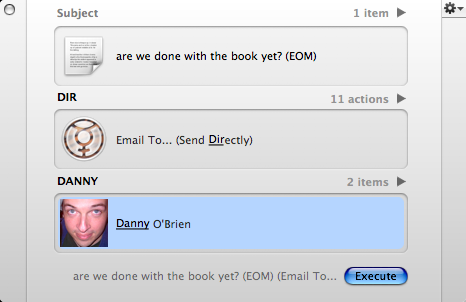
Neat trick here for Quicksilver users to dash off an EOM-type email from right inside the app. (Yes, I assume this requires the Mail and Address Book plugins, possibly others, yadda yadda yadda).

  1. Invoke Quicksilver (usu. CTRL-Spacebar)
  2. Hit . (period key) to get the variable input field
  3. Type a short EOM-style message
    • Try “My 43F test message (EOM)
  4. Tab to the second pane
  5. Type, say, dir until you get “Email to...(Send Directly)
  6. Tab to the third pane
  7. Type until your own Address Book entry appears
    • Optionally right-arrow in to select the specific (non-default) email address you want to send to.
  8. Hit Return

If everything is configured right, this should send an email with the contents of step 3 as both the subject and the body of the message. Of course, this would also work really well with Andrew’s Gmail To-do and Journal system among many other things, but I love it especially as way to quickly dash off a super-efficient email without changing modes. And most recipients love the brevity, so everybody wins.


13 Comments

Comment viewing options

Select your preferred way to display the comments and click "Save settings" to activate your changes.
scruss's picture

Hmm, it was only the...

Hmm, it was only the Windows-using suits and marketroids that used EOM or n/m in a subject line in my old unixish place of work. The rest of us sent subject-only e-mails using mailx from the shell. ‘gone to the canteen’ needs no further explanation.

Merlin Mann's picture

Ha! I may stand corrected...

Ha! I may stand corrected here.

In my experience, if you send someone an email with just a Subject line, they tend to think you’ve forgotten something or are just really dim. :)

Dan Dickinson's picture

If you find yourself doing...

If you find yourself doing this a lot, I recommend rearranging the action order for the Text object type.

Go to the QS preferences, click on “Actions”. You’ll get two panes; pick “Text” on the left. On the right you’ll see all the actions you can do to text. Drag the one you find yourself doing the most to the top of the list; disable any you don’t use.

Now you can skip the second pane and go directly to the third.

Merlin Mann's picture

Good one, Dan. I try leave...

Good one, Dan.

I try leave my #1 as “Paste” and #2 as “Append to…” but that’s a great suggestion.

There’s a lot of power in that Actions area. Do you notice that yrs get re-jiggered when you add new Services, and Plugins? Seems like new ones always gobble the top slot wherever they apply.

Dan Dickinson's picture

I do find that happening...

I do find that happening occasionally, and I also don’t think there’s a lot of clarity as to what the actions and data types actually represent. I’ve got two actions named “Open” with the Mail.app icon next to it - I don’t get it.

But, then again, in terms of all QS functionality, this is still a very young feature. I can wait for the clarity.

Michael McCracken's picture

Appending EOM might be a...

Appending EOM might be a good idea to help out scripting on the other end - if you use Growl to display notifications for some emails, you could do something different for ones with EOM at the end, like marking them as read since the whole message fits into the Growl notification.

Edward Vielmetti's picture

Can you execute shell commands...

Can you execute shell commands straight from quicksilver without opening terminal or iterm?

From a shell this is so easy,

echo “thanks” | mail -s “please get bread on your way home” honey

Akakie's picture

This looks nice, but I...

This looks nice, but I don’t get “Send directly”. I get send, but it brings up mail with everything filled in. Then I have to lift a finger to click send (oh, woe, alas, poor me, whine). If it were not for insatiable curiosity, I’d be content. What am I missing?

klasher's picture

Try going to your QS...

Try going to your QS Preferences…, select the Actions tab and then select Text. In the list of Actions make sure you have the “Send directly” option checked. Works great for one-off IM messages too!

jrk's picture

In fact, you can also...

In fact, you can also send complete messages from Quicksilver in the same way by using ‘>>’ to separate the subject from the body.

For example,

What’s with your TPS Reports… >>[option-return] Did you get the memo??

will send the message with the subject “What’s with your TPS Reports…” and body “Did you get the memo??”

You can type newline characters in the text area by pressing [option-return], as I suggested there, but it’s not necessary for the >> trick to work.

It’s a great way to fire off quick messages, even if they’re not one-liners.

ehd's picture

not that I can't figure...

not that I can’t figure out another way to do this but I am now curious- like Edward above, i also do not have the “Send Directly” nor an Actions Tab under preferences- I am using v1c39 on 10.4.2- which ver does this work under?

ehd's picture

got it now... had to...

got it now… had to update to newest QS. And it’s just as slick as it sounded!

Sean Santry's picture

For those of you who...

For those of you who don’t see the “Actions” pane in Preferences, you need to check the box “Enable Advanced Features” under “Application.” Then you’ll see the “Actions” pane and can modify the Text type to allow the Send Directly action.

 
EXPLORE 43Folders THE GOOD STUFF

An Oblique Strategy:
Discard an axiom


STAY IN THE LOOP:

Subscribe with Google Reader

Subscribe on Netvibes

Add to Technorati Favorites

Subscribe on Pageflakes

Add RSS feed

The Podcast Feed

Inbox Zero

The original 43 Folders series looking at the skills, tools, and attitude needed to empty your email inbox — and then keep it that way. Don’t miss the free video of Merlin’s Inbox Zero presentation.

Get Started with ‘GTD’

David Allen’s popular productivity book and the system on which it’s based help turn ‘stuff’ into actions that support valuable outcomes.