Merlin’s weekly podcast with Dan Benjamin. We talk about creativity, independence, and making things you love.
Quicksilver's Append: An updated appreciation + Robert's troubleshooter
Merlin Mann | Nov 21 2005
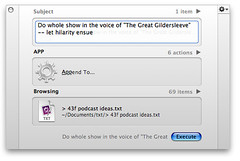
The Quicksilver feature that will most dramatically change how you work is probably "Append to..." (or, when you prefer, "Prepend to..."). We first covered this back in the Bronze Age of 43F, and it's come up again repeatedly here, in the podcast, and elsewhere. And with good reason, I think. It's jaw-droppingly useful, and is the single best way I know of to ensure that "ubiquitous capture" can always occur without causing disruption or unnecessary modal change. To review, for you new kids, Quicksilver, when properly configured (more on that in a minute), will let you add a line of text to any text file on your Mac. As long as it's included in a QS catalog someplace, you're a few fast keystrokes away from capturing your brilliant but ephemeral idea without stopping what you're doing. This is huge, in practice, believe me. A few uses we have loved?
As I said to the Tinderbox group on Saturday -- this approach is the most efficient way I know of to get it all down whenever you're at your Mac:
This is all partly in the service of bubbling up (and lovingly rehashing) something I adore, but it's also to share some very useful advice from the de facto Vice President of 43 Folders, Mr. Robert Daeley. As Robert notes, there are several problems that can cause QS to barf on your append functionality. Tracking down the exact cause has sometimes driven friends of 43F to the brink -- so much did they crave the Power of Append. Well, friends, Robert has come to the rescue with this handy guide to finding what the hell is wrong with your setup. Many thanks to him. Appendicitis: Troubleshooting the Quicksilver Append HackA little over a year ago, Merlin posted what turned into one of the most popular of his hints: Quicksilver: Append to a text file from anywhere. This is a very cool example of the power of Quicksilver's dual CLI/GUI nature. Unfortunately, being on the bleeding edge of technology at the time, there were quite a few issues with what was beta functionality. And while things have gotten much better now that more development has passed, the steps necessary to make the hint work are still rather convoluted to the uninitiated. This article codifies all of the various caveats and prerequisites for you to enjoy appending (and prepending) to text files. I researched using b45 Saint Bernard (3348). You can find what version of Quicksilver you're running by choosing 'About Quicksilver' from its menu item or the small triangle in the upper righthand corner of the Quicksilver window. The following assumes that you have Quicksilver installed and running (get it from here), and that you're at least passing familiar with its Preferences window. The plug-in in question is now in Stable features, last updated on May 2, 2005. Quicksilver requirements
Quicksilver preferences
Text file targets
Inevitably, another caveat will arise after publishing this article ;) so please let us know via the comments. Found a new bug or hangup? Read the troubleshooter and double-check all your settings. If it's still driving you crazy, chime in with a comment, and we'll try to help you out (with us adding to Robert's list of caveats as needed). 43 Comments
POSTED IN:
 My TextEdit seems to add...Submitted by Steve (not verified) on November 22, 2005 - 7:46am.
My TextEdit seems to add a .rtf extension instead of a .txt. The append feature doesn't seem to work with an .rtf file. Does anyone know how to convert to an .rtf? It doesn't seem to be an option under "save as" Thanks, Steve » POSTED IN:
|
|

| EXPLORE 43Folders | THE GOOD STUFF |


