Merlin’s weekly podcast with Dan Benjamin. We talk about creativity, independence, and making things you love.
Full screen mode update: Close enough
Merlin Mann | Apr 17 2006
As an update to my previous post about wishing full-screen mode were more ubiquitous, I wanted to share a combination of apps and tips that's been working well for me (thanks in part to the great comments over in that thread). Tools you'll need
Setting up
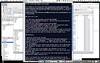
Ta-da. A serviceable full screen mode for minimizing distraction and the myriad attractive nuisances in your world. Maybe not as fancy as the built-in functionality in MacJournal, DevonThink, or Ulysses, but close enough for government work -- and usable across the range of apps in your life. 3 Comments
POSTED IN:
 [...] Merlinman, de 43Folders, acaba...Submitted by Venera7.com » Blog Archive » Evitando el NADD en (not verified) on April 24, 2006 - 5:32am.
[...] Merlinman, de 43Folders, acaba de escribir un post excelente sobre cómo conseguirlo de una manera realmente eficiente gracias a una combinación de herramientas para Mac que lo hacen posible (no tengo ni idea de cuáles serían las equivalentes en Windows). La idea es tener la ventana de la aplicación en la que estás trabajando y nada más, en un escritorio en que todo (dock, barra de opciones y fondo) han desaparecido para no introducir ninguna distracción visual. Él lo llama el “Modo pantalla completa”, y ya ha escrito sobre él antes. El concepto y en sí y cómo aplicarlo me parecen excelentes, y lo que me propongo es resumirlo aquí en castellano. [...] » POSTED IN:
|
|


| EXPLORE 43Folders | THE GOOD STUFF |


